Save it on X.
Find it in XMarks.

XMarks turns your X bookmarks into a library you can search, sort into categories and add notes to. Bring in everything you’ve already saved with one click. It all stays in your browser.

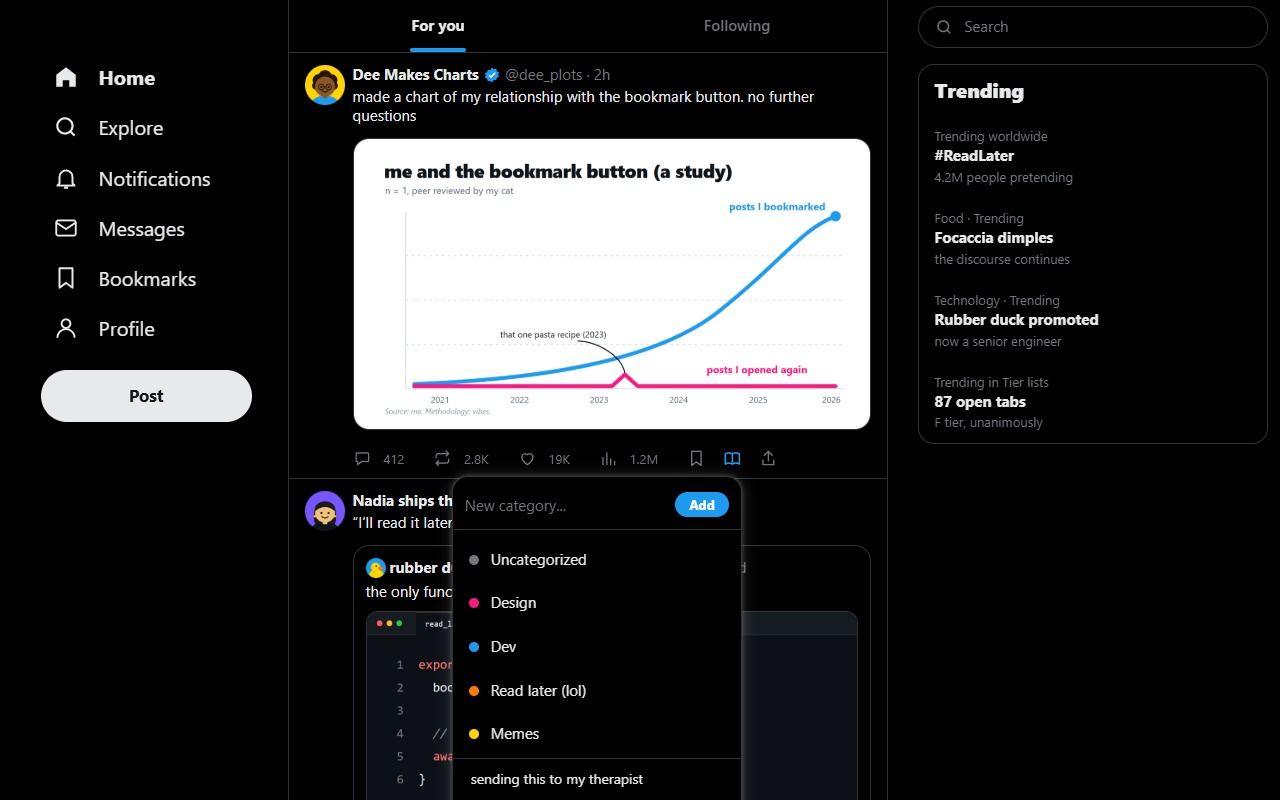
Drag the book to any slot. Click it to save.

Placed: After BookmarkSame setting as in the XMarks dashboard
Add to Chrome, it’s free

How it works

  1. 1. Sync what you already saved

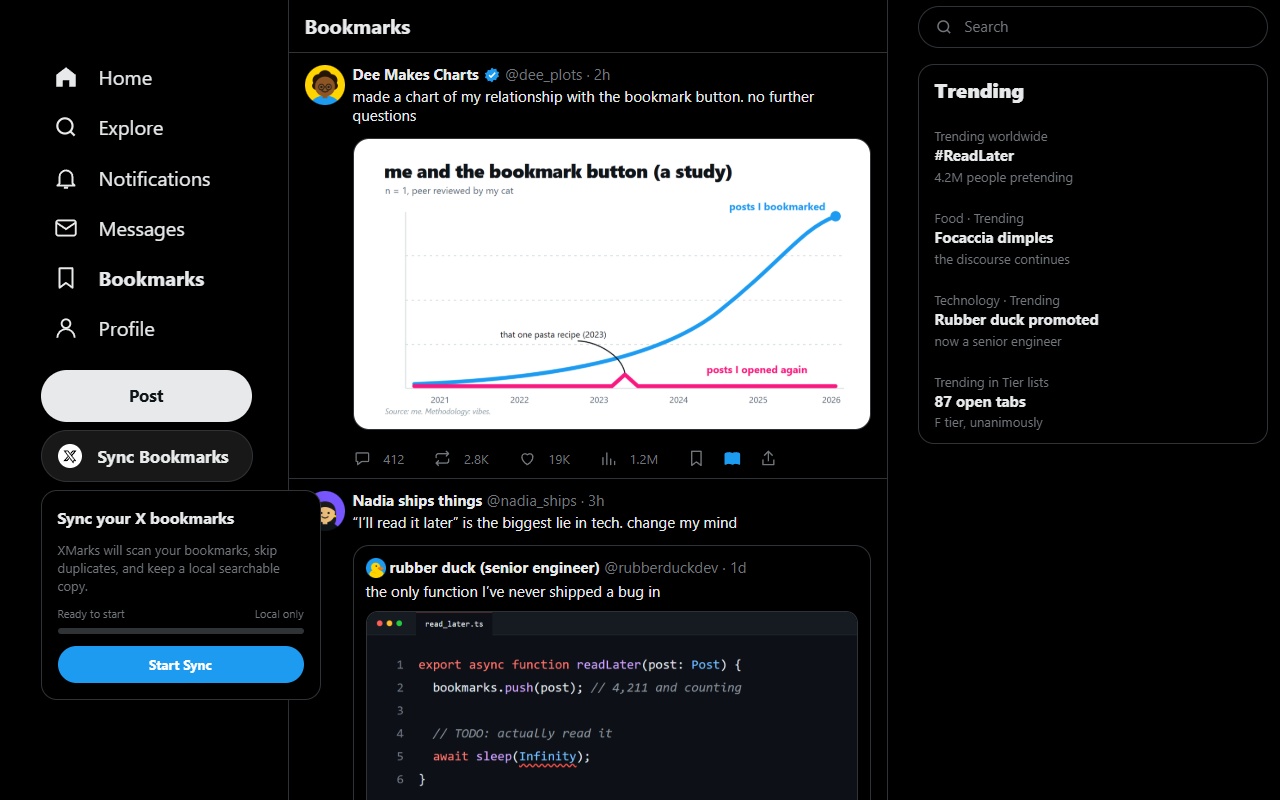
    Open your Bookmarks on X and click Sync Bookmarks. XMarks scrolls the list, keeps a local copy and skips duplicates. Pause and resume any time.

  2. 2. Save new posts as you scroll

    A book icon sits in every post’s action bar. Click it, pick a category, add a note. Or let X’s own bookmark button save to XMarks.

  3. 3. Search everything

    Search inside post text, quoted posts, authors, tags and your notes. Sort into categories by hand, or let the local model do it.

See it in action

Real screens from the extension, not mockups.
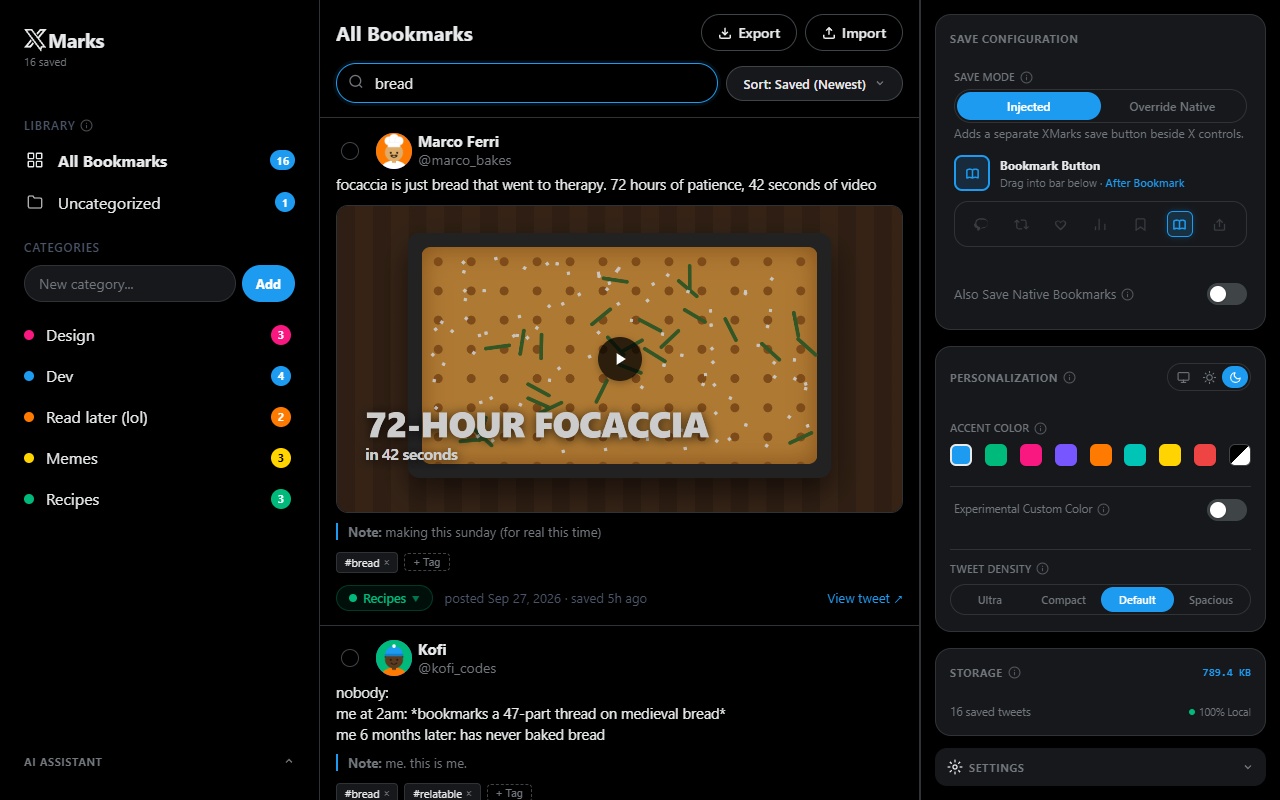
The XMarks dashboard searching for “bread”: categories on the left, matching posts with notes and tags in the middle, settings on the right.
  1. Search everythingPost text, authors, tags and your notes.
  2. CategoriesColor-coded, with a count on each.
  3. Notes and tagsRemember why you saved it.
  4. Make it yoursAccent color, theme and card density.

Made for people who save a lot

The small things that make a big library easy to live with.

Back up and move

Export your whole library, or only selected posts, to one JSON file with categories, tags and notes. Import it into another browser.

Tidy up in bulk

Tick a few posts, or every post in view, then move them to a category, export them or delete them in one go.

Keyboard shortcuts

Jump to search, write a note or start a category without reaching for the mouse. Press ? in the dashboard to see them all.

Four densities

Scan hundreds of posts in Ultra, or give long threads room in Spacious. Try it above.

Still there if it’s deleted

XMarks keeps its own copy of the text and your notes, so a saved post stays readable after it’s deleted or made private on X.

Try one. The whole page follows.

See the size, pick the color

Hover your saved count to see how much space your library takes. Choose an accent color and a light, dark or system theme.

Stored in your browser.
Nowhere else.

Bookmarks, tags, notes and categories live in your browser. There’s no XMarks account, no tracking and no XMarks server to send them to.

  • 100% On-DeviceYour personal vaultEvery post, tag, note and category lives on your machine. None of it is sent anywhere.
  • Private AISorting on your deviceAuto-categorize downloads a small model once (about 45 MB), then runs on your machine. Your bookmarks are never sent anywhere. It stays off until you turn it on.
  • Open DataComplete portabilityTwo-way JSON export and restore means your library is never trapped in a walled garden.
  • Remote serversYour dataThere isn’t one. No tracking, no accounts, no lock-in.

Side by side

FeatureXX PremiumXMarks
Search saved postsKeywordsKeywordsPosts, notes & tags
Folders & categories—FoldersCategories
Personal notes & tag editor——Yes
Auto-categorize——On your device
Full JSON backup & 1-click restore——Two-way JSON
Selective export (curated swipe files)——Yes
Multi-select batch triage (move, export, delete)——Yes
Keyboard shortcuts——Yes
Four card densities——Yes
Keeps posts that get deleted——Text & notes
Shows how much space it uses——Yes

Questions

Can I export or migrate my bookmarks to another browser?
Yes. You can export your entire library or hand-pick selected bookmarks into an open JSON file at any time. When you install XMarks on another browser or machine (Chrome, Brave, Edge), click Import to restore everything, including categories, tags and notes.
What happens if an author deletes their post on X?
Once a post is saved to XMarks, it is preserved locally in your browser. Even if the author deletes the tweet, switches their account to private, or gets suspended on X, the post text and your notes stay in your library. Images and videos are loaded from X, so those can stop showing once the post is gone.
Can I organize posts in bulk or use the keyboard?
Yes. Tick posts with their checkboxes, or select everything in view, then move them to a category, export them or delete them in one go. Shortcuts: / to search, E to edit a note, C for a new category, G then A for all bookmarks, and ? to see them all.
Does XMarks send my bookmarks to any servers?
No. Everything is stored locally on your device. There is no XMarks account, no remote database and no tracking. The full details are in the privacy policy.
Does auto-categorize send my bookmarks anywhere?
No. The first time you turn it on, XMarks downloads a small model (about 45 MB) from Hugging Face. After that it runs inside your browser, and your bookmark text never leaves your device. It’s off until you turn it on.
I have thousands of bookmarks. Will sync finish?
Sync scrolls through your bookmarks on X (the Bookmarks page, or the Bookmarks tab in History) and saves as it goes. You can pause and pick up later, and posts it already has are skipped.
Does it work with X’s themes?
Yes. The save button and menus follow X’s Light, Dim and Dark themes. The dashboard has light, dark and system themes, four card densities (Ultra, Compact, Default, Spacious), and you choose where the save button sits in X’s action bar.

Your bookmarks
are waiting.

Add to Chrome